Additional Data Dimensions
About Additional Data Dimensions
DHIS2 allows adding dimensions to data in addition to the standard dimensions. These additional dimensions are called attribute categories (ACs). The standard categories described in the previous chapter are referred to as disaggregation categories (DCs) to differentiate them from ACs.
ACs and DCs are similar—they work in the same way, are accessed through the same part of the maintenance interface, and exist in the same part of the database. The main difference is:
- DC: Attached to a data element. Values for all DC options can be entered on the same data entry screen.
- AC: Attached to a data set. You must choose the AC option before entering data.
While you could use only DCs, ACs help simplify data entry screens or reduce the size of the cross-product of category option combos.
Tip
When deciding which categories should be DCs or ACs:
- Use DCs for different combinations of categories on different data elements within a data set.
- Use DCs to enter all category option combinations on one screen.
- Use ACs for the same combination of categories across all data in a data set.
- Use ACs to enter only one category option combination on a single screen.
DCs and ACs can answer questions about a data element beyond just what, including who, why, how, where, or when.
Create or Edit an Attribute Category and Its Options
Creating an attribute category, its options, and combinations is described in Manage Categories.
- DCs are configured by editing a data element.
- ACs are configured by editing a data set.
Data Entry with Disaggregation Categories and Attribute Categories
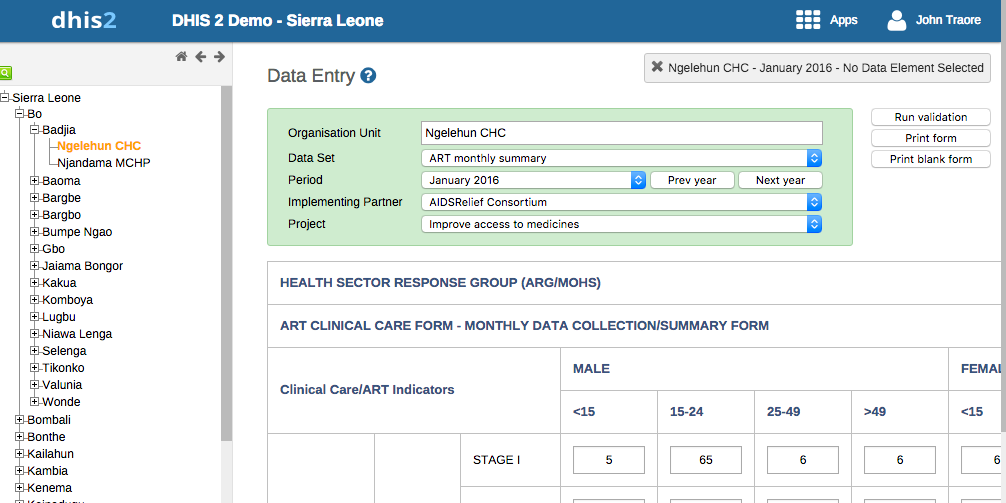
When entering aggregate data:
- Select the attribute categories.
- Enter data across disaggregation categories on a single page.
Example:
- Attribute categories: Implementing Partner (AIDSRelief Consortium), Project (Improve access to medicines)
- Disaggregation categories: Gender (male/female/etc.), Age ( less than 15, 15-24, 25-49, greater than 49)
Analysis with Disaggregation Categories and Attribute Categories
To include these categories in analysis:
- Check the Data dimension box in the category editing screen of the Maintenance app.
- See Create or Edit a Category for details.
Approvals with Attribute Categories
To include ACs in approvals:
- Create a category option group containing the same options as the AC.
- Create a category option group set.
- Add the group set as a data approval level.
For details, see:
Attribute Categories and the Datavalue Table
Each data value in DHIS2 is associated with:
dataelementidperiodidsourceid
Each data value also has a value column:
| dataelementid | periodid | sourceid | value |
|---|
Each data value references:
- Disaggregation category option combination via
categoryoptioncomboid. - Attribute category option combination via
attributeoptioncomboid.
Example:
-
Data value for "<15" →
- Gender (DC) = "Male"
- Age (DC) = " >15"
categoryoptioncomboid= "Male, <15"
-
Attribute categories →
- Implementing Partner = "AIDSRelief Consortium"
- Project = "Improve access to medicines"
attributeoptioncomboid= "AIDSRelief Consortium, Improve access to medicines"
| dataelementid | periodid | sourceid | value | categoryoptioncomboid | attributeoptioncomboid |
|---|
Note
Not all columns in the datavalue table are shown.
If no disaggregation category combination is defined for a data element, categoryoptioncomboid references a default category option combination. Similarly, if no attribute category combination is defined, attributeoptioncomboid references the default.
This illustrates how data values are linked to both disaggregation and attribute category options in DHIS2.